Run a Dance Studio Dynamic Cameras Guide
Quick answer
How to use Dynamic Cameras to record group routines in Run a Dance Studio on Roblox.
Quick Answer
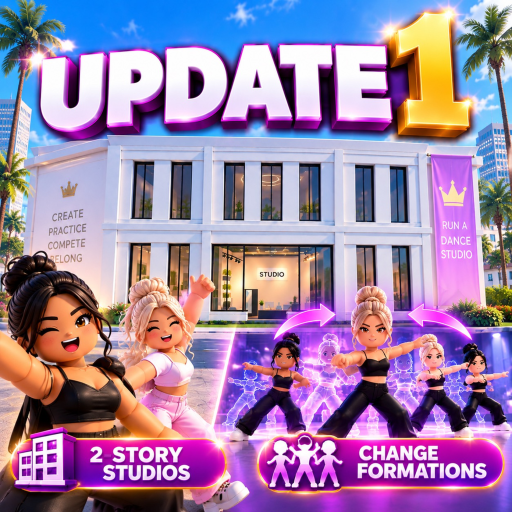
Dance Interactive announced Dynamic Cameras on August 31, 2026 as a feature that makes group routines easier to record. The announcement does not publish keybinds or camera settings, so use the current routine or stage HUD as the authority.
Recording Checklist
- Prepare and save the group routine first.
- Add at least one formation change if the editor supports it.
- Open the in-experience camera or record control shown in the current HUD.
- Preview the group to check that dancers and formations remain visible.
- Rejoin a fresh server if the feature is missing after a documented update.
What Dynamic Cameras Do Not Confirm
The public announcement does not confirm a cinematic editor, FOV slider, special keybind, or Awards requirement. Do not download a camera GUI, outside script, or third-party recorder for this feature.
Step-by-Step Recording Flow
Start by saving the routine before opening any camera controls. A camera pass is easiest when the dance, dancers, music, and formation changes are already set. Load the routine, preview it once without recording, and watch for dancers leaving the frame during transitions.
Next, open the current camera or recording control shown in the Roblox experience. Use the live HUD labels as the authority, because public update coverage confirms the feature but not a permanent control layout. Record a short test clip first, then review whether the full group remains visible. If the camera cuts away from an important move, adjust the routine or formation timing before recording the final version.
Best Uses
Dynamic Cameras are most useful for group routines, social clips, and checking how a routine looks from a viewer angle. They are not a substitute for training dancers or improving the routine itself. If a routine scores poorly in competitions, fix dancer prep, moves, and formations before assuming the camera feature changes results.
Troubleshooting
If you do not see Dynamic Cameras, rejoin from the official Roblox page and check a current server. If controls appear but recording looks wrong, preview with fewer formation changes and confirm every dancer is visible. If the camera is available only in certain routine screens, use the screen where the game exposes it instead of forcing it through external tools.
FAQ
Does Dynamic Cameras change competition score?
No public evidence confirms a scoring effect. Treat it as a recording and presentation feature unless the live game says otherwise.
Do I need a script or extension?
No. Do not install outside tools for this feature. Use the controls inside the Roblox experience.
Can I use it for solo routines?
Maybe, if the live UI exposes it there. The strongest public wording is about making group routines easier to record.
Player Workflow Example
A practical camera workflow is: save the routine, preview the whole dance, record a short test, adjust the routine if dancers leave frame, then record the final version. This order matters because camera work should come after the routine is stable. If you start with recording, you may keep fixing camera angles while the real issue is unfinished choreography.
For group routines, watch the widest part of the formation first. If every dancer is visible during that moment, the rest of the routine is usually easier to capture. If dancers overlap, use the formations guide to create wider spacing or simpler transitions before recording again.
Safety Notes
Only use camera controls inside Roblox and inside the experience. A public feature announcement does not mean external executors, camera scripts, extensions, or downloadable tools are safe. If a video or comment tells you to install something to unlock camera controls, skip it and check the live HUD instead.
Dynamic Cameras also should not be treated as a hidden reward mechanic. Use it to review and present routines. For progression, keep focusing on training, saved routines, Cash, Gems, and competition preparation.
Evidence Update Triggers
This page should be updated when the official game page, in-game announcement, or dated update coverage confirms permanent controls, score effects, required modes, or named camera settings. Until then, the guide stays focused on the safe workflow that can be checked inside the game.
Source Notes
Feature timing and purpose are based on Three Live Features coverage and the official Roblox listing. Verify current controls in-game.
Choose your next move
Related Guides
Once this question is solved, continue to the next decision without returning to search.
How to Build a Second Story in Run a Dance Studio
What the Run a Dance Studio second-story update confirms and what to check before spending Cash.
How to Play Run a Dance Studio Roblox – Beginner Guide
A first-hour guide for starting Run a Dance Studio on Roblox.
Run a Dance Studio Cash and Gems Guide
Evidence-aware guide to Cash, Gems, competitions, and packs in Run a Dance Studio.
Run a Dance Studio Competitions Guide – How to Enter and Prepare
How to prepare for competitions in Run a Dance Studio without relying on unverified reward claims.